
After you log in to Secure Access you will be able to access files stored in your H, I, and other network drives.
Accessing your H drive
To access the files in your H drive:
- Select Apps at the top of the window.
- Select My Files.
Image
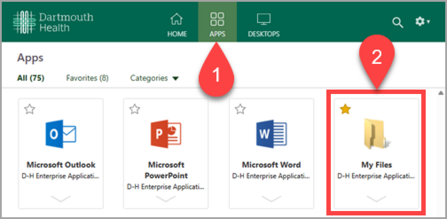
The files you have saved to your H drive will appear in a new window.
Mapping your shared I drive
Follow these steps to map a shared drive.
- In the Apps window, select Network Drives.
Image
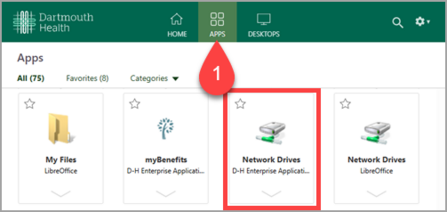
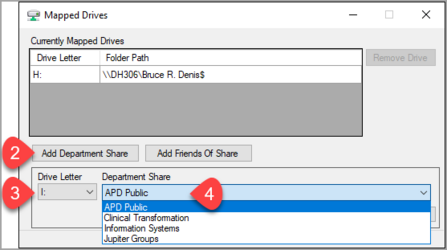
The Mapped Drive dialog box appears.
- Click the Add Department Share button.
- From the Drive Letter drop-down list box, select the letter I.
- From the Department Share drop-down list box, select the name of your department's shared folder.
If you can’t find the shared folder you need, ask a colleague or contact the Help Desk (5-2222 or 603-650-2222).
Image
- Click the Map Drive button.
- Repeat steps 2-5 to continue mapping to other shared drives.
- Close the Mapped Drives dialog box.
- Return to My Files to access your I drive.
Searching for files on network drives
To find a file when you are in your H drive, use the Windows File Explorer search feature.
- Open File Explorer by pressing the Windows key and the E key at the same time.
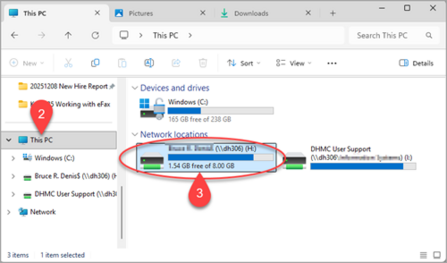
- Select This PC from the navigation pane on the left.
- From the pane on the right, double-click the drive you want to search on, as shown below.
Image
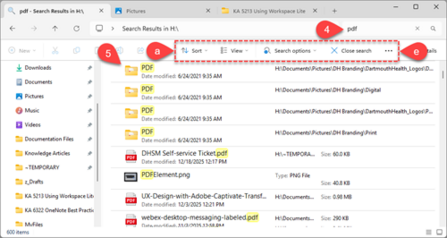
- Enter your search term in the search box at the upper-right corner of the dialog box. Search for file and folder names using some of the options below:
- Use the Sort menu to control the order of the search results.
- Use View to control the level of detail displayed (icons and detail)
- Use Search options menus to refine your search results. Use File contents with caution. It can take hours for results to appear while Windows searches unindexed content of every file.
- Use Close search when you are finished searching.
- Use the More menu (...) for other options.
- The search results appear in the file and folder listing area of the dialog box.
Image